Showing posts with label lightroom. Show all posts

a26 August 2014

Saturation vs Vibrance - what's the difference?

When I started using Adobe Lightroom a few years ago, one of the things that caused my biggest confusion was what had been the difference between Saturation and Vibrance sliders. They both seemed to affect saturation and vividness of colours but the results they gave weren't identical.

And that is true - although both sliders boost saturation of colours, they do this in a slightly different manner. Here's an example.

Below you can see original image I took on Lanzarote islands, Canary Islands. The image showing volcanones has pretty low saturation so I decided to improve it:
Original image

Continue reading for more details »

a8 April 2014

Adobe Lightroom Mobile first impressions

Adobe Lightroom Mobile

Today I was surprised to read the news that Adobe released Lightroom Mobile - project they announced quite some time ago - which is iPad version of Lightroom (I read somewhere that they're working on Android version too).

Without much thinking I downloaded it onto my iPad to test it out. First surprise - you need Creative Cloud subscription to use it for free. I have so it wasn't big deal but for those of you who haven't - it might be because as far as I know you won't be able to use this app without valid CC subscription - you simply can't buy it as a separate product! You also need desktop version of Lightroom installed on your computer because mobile version syncs with it.

It might sound like a step in wrong direction from Adobe but... do you remember all the hassle when Creative Cloud was initially announced? Many photographers, who use only Lightroom, claimed that for them this model is very unfair as it doesn't offer them as much as it offers eg. designers. Now - this changed. There is another product in Adobe's portfolio targeted towards photographers. And only them.

Impressions

Now let's go to some details. User interface is very simple, nice and in fact more intuitive than in desktop version. You can easily edit your photos in just a few clicks. The application is also much simpler than desktop version so it's easier to learn.

Lightroom Mobile lets you edit images that you either have already on your iPad or which you get from your desktop by syncing Lightroom Mobile with Lightroom desktop version. To do this you need to download just released Adobe Lightroom 5.4, create collection in it and set it as "synchronizeable". When you connect iPad to your computer, all images from this collection will be transferred onto iPad.

Once you have your photos imported, you can see them as a grid or you can edit them in some equivalent of desktop version's Develop module.

In this develop-like module you can not only flag your photos (Pick/Reject) but you can also adjust all basic settings like White Balance, Exposure, Highlights, Shadows, Saturation or Clarity. You just click on the name of the setting and slider appears to allow you make adjustments. You can also Crop your image.

Continue reading for more details »

a24 October 2013

Autumn Lightroom presets collections

Autumn photo from Tatra Mountains
Above photo, taken in Tatra mountains, was processed using presets from this post.


Today I would like to share with you my new presets collection for Adobe Lightroom - this time presets for post-processing autumn landscape photos. Make the colours of autumn pop!

You can download my autumn presets here.

Also if you like them, I would greatly appreciate your feedback and shares of this post amongst your friends. It will motivate me to create & share even more free presets. Let me know your favourite ones too! And make sure to give links to photos processed with these presets in the comments below - I'd be very happy and interested to see them.

BTW you can find more presets created by me here. They include Adobe Lightroom, Topaz Adjust and Photomatix Pro presets. And they are all free!

To import presets into Adobe Lightroom:
  1. Extract downloaded presets, remembering the location where you did extract the files.
  2. Go to Develop module in Lightroom.
  3. Expand Presets panel (it's on the left side just below Navigator).
  4. Right-click on the folder of your choice (eg. User Presets) and select Import...
  5. Navigate to the location where you extracted presets, select all of them and click on the Open button.
There are 6 categories of presets that are described below but each of the presets comes in a few variations what gives a total of 17 autumn presets!

Continue reading for more details »

a18 September 2013

Tutorial: using selective adjustments in Lightroom

Today I would like to share with you a new video tutorial I have just recorded. This time I present selective adjustment tools available in Lightroom:
  • graduated filter,
  • adjustments brush and
  • radial filter (which was introduce in Lightroom 5).

Continue reading for more details »

a31 August 2013

Tutorial: useful Lightroom shortcuts

Road in Masuria
Click on the photo to view it in large size on black background.


Note: As my list of Photoshop keyboard shortcuts seems to be quite popular I would like to share a list of my favourite Lightroom keyboard shortcuts today. BTW there is also a list of Photomatix Pro shortcuts available here.

Modules and view

These shortcuts are used to navigate between different modules and also to choose different ways to preview your photos:
  • G - go to Grid view in Library - useful for viewing a lot of photos at once. I often use this view to group photos, stack them, find bracketed sets or panoramas
  • E - go to Loupe in Library (view preview of a photo). Mode that is useful to preview your photos
  • D - Develop selected photo
  • C - compare 2 images
  • N - survey images - lets you see a number of images at once and pick your favourite one. Useful if you have a number of similar images and want to choose the best one (eg. in terms of focus or composition).
  • L - toggle "light" mode. Useful for previewing image on completely dark background
  • F - shows currently selected photo in full-screen mode. Click again to leave full-screen mode
Rating and labels
  • 0 - set rating to 0
  • 1 to 5 - set rating to a given number of stars
  • 6 - set Red color label
  • 7 - set Yellow color label
  • 8 - set Green color label
  • 9 - set Blue color label
  • CTRL + UP ARROW - increase Flag rating (usually to mark as Picked)
  • CTRL + DOWN ARROW - decrease Flag rating (ustually to mark as Rejected)
Tools
  • R - crop tool 
  • Q - spot removal tool
  • M - graduated filter tool
  • CTRL + M - radial filter tool
  • K - adjustment brush tool

Other
  • CTRL + BACKSPACE - delete rejected photos from current folder
  • CTRL + G - stack selected photos 
  • CTRL + ' - create virtual copy of a phot
  • Z - zoom in/out
  • SHIFT + TAB - toggle visibility of all panels 
  • ALT - ALT key is somewhat special in Lightroom. Click and hold it in Develop module and a lot of buttons will work differently (eg. they will allow you to reset or preview various things)

Continue reading for more details »

a23 May 2013

Lightroom Vintage presets

before after

Today I would like to share a bunch of vintage presets for Lightroom 4 (they are also good for Lightroom 5 beta). You can download them here.

You can see example of one of the presets in action in the photo above. I took this photo in Montpellier old town. The After version was developed using Vintage6 preset which you will find in the ZIP. No additional editing work was required apart from sharpening using High Pass filter.

My presets work best for well-exposed (and slightly over-exposed too) outdoor scenes taken in day light. If the scene is too dark (eg. indoors) it might have magenta cast.

Continue reading for more details »

a16 April 2013

Lightroom 5 beta - evolution not revolution

I took this photo almost 2 years ago in the Old Town of Warsaw, Poland during sunset. There is quite a mess in the frame but what I like in this image is very soft light, resulting in very calm and tranquil atmosphere.
With previous versions of Lightroom introducing so many new cool features (eg. version 4.0 reinvented most of the sliders, added Book module; 4.1 introduced tone-mapping as well as improved controls for chromatic aberration reduction) I expected the same from the next major release, i.e. 5.0 which beta was just released by Adobe yesterday. You can download the beta for free from Adobe website. It will continue to work until 5.0 is officially released (a few months from now probably).

Frankly speaking I'm slightly disappointed with scope of changes. Although there are some nice and interesting additions, there is nothing without what I couldn't live (eg. I can't live with Clarity slider from 4.0 :) ). Here is the list of major changes with a short comment from me for each of the features. Probably there are hundreds of smaller improvements but I'm yet to discover them:

Improved Spot Removal - spot removal saw some great overhaul in version 5.0. It is no longer simple spot removal in fact as you can select irregular regions (and not only "spots") by making brush strokes. So I would say it's now closer to Spot Healing Brush tool from Photoshop CS (although still not that powerful).

In the image below I used this feature to get rid of the trash bin:


Upright - the best addition of all in my opinion - it can automatically fix skewed horizontal or vertical lines with a single mouse click. It does some great job and will probably be loved by anyone shooting architecture without a tilt-shift lens. What's great about this feature is that it doesn't crop much of the image.
In the image below I managed to fix all vertical lines by choosing Vertical option from Upright panel:


Radial local adjustment - up to know there were 2 types of local adjustments: graduated filter and adjustment brush. Now there is 3rd one - radial gradient filter. It works in a bit similar way to U-Point technology from Nik. You draw a circle (or an ellipse) and adjustment is applied only inside it (or outside of it). You can also feather the adjustment.

Below is the sample image. I used two radial filters on the clouds to add more drama to them. I could of course use adjustment brush to achieve the same result but it was much quicker with radial filter. Graduated filter wouldn't work here well as there isn't clear line dividing sky and the buildings.
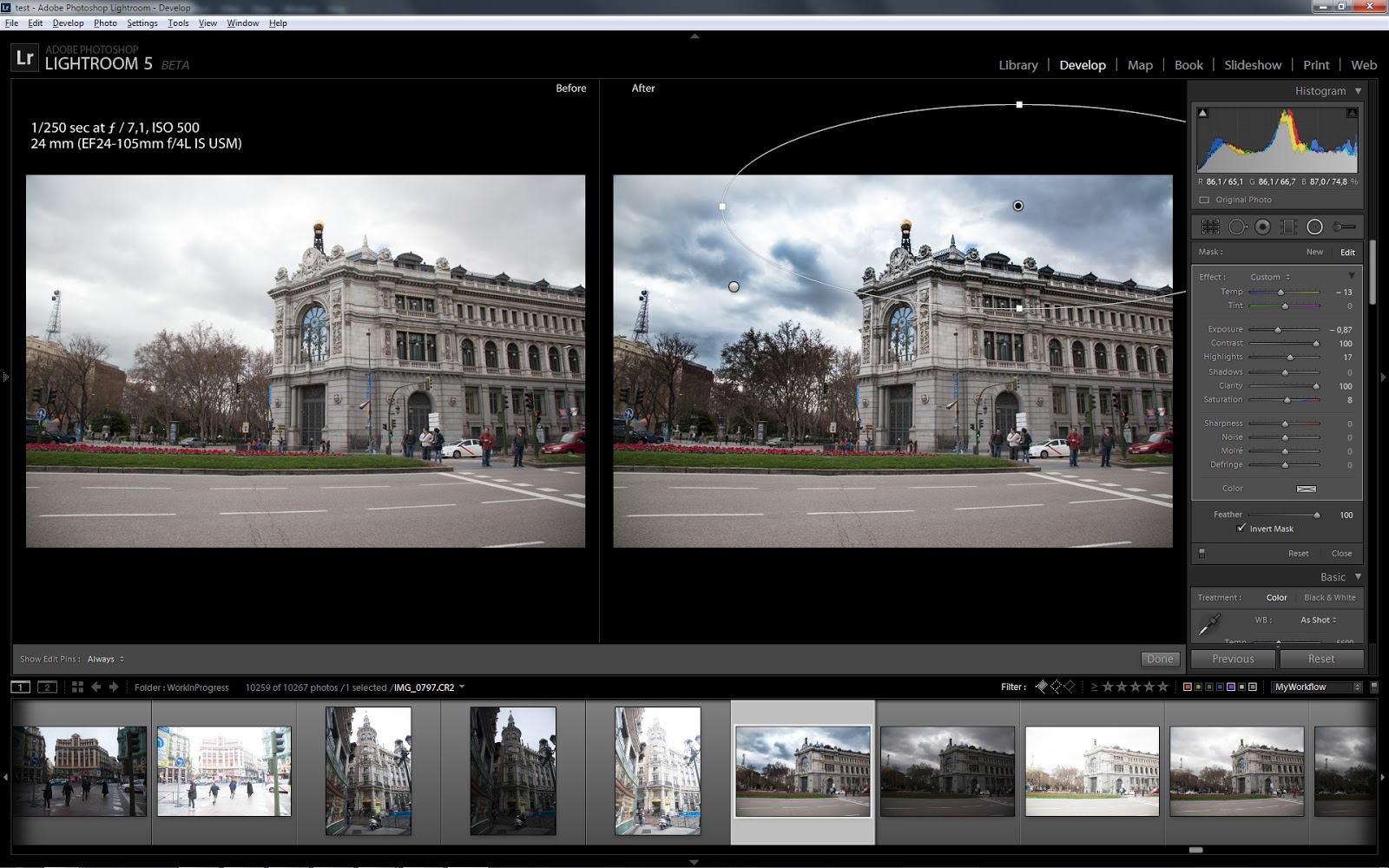

Offline editing - you no longer need to have access to your original files while editing photos (of course you will need this access during export) - instead you can use Smart Preview - smaller version of the original file.

There are also some improvements to Slideshow and Book modules. However, I haven't looked into them yet as I don't use neither feature often.

As I said these are pretty nice features but I don't think they will greatly improve image quality like changes in version 4 did. For me the only useful ones are Radial filter and Upright so unless I will find some other useful improvements I will stick to version 4 for now.

I'm interested to hearing your thoughts, so share them here or eg. on Facebook.

Continue reading for more details »