Time for another post in my Post-processing Wednesday series. For more posts from this series go here.
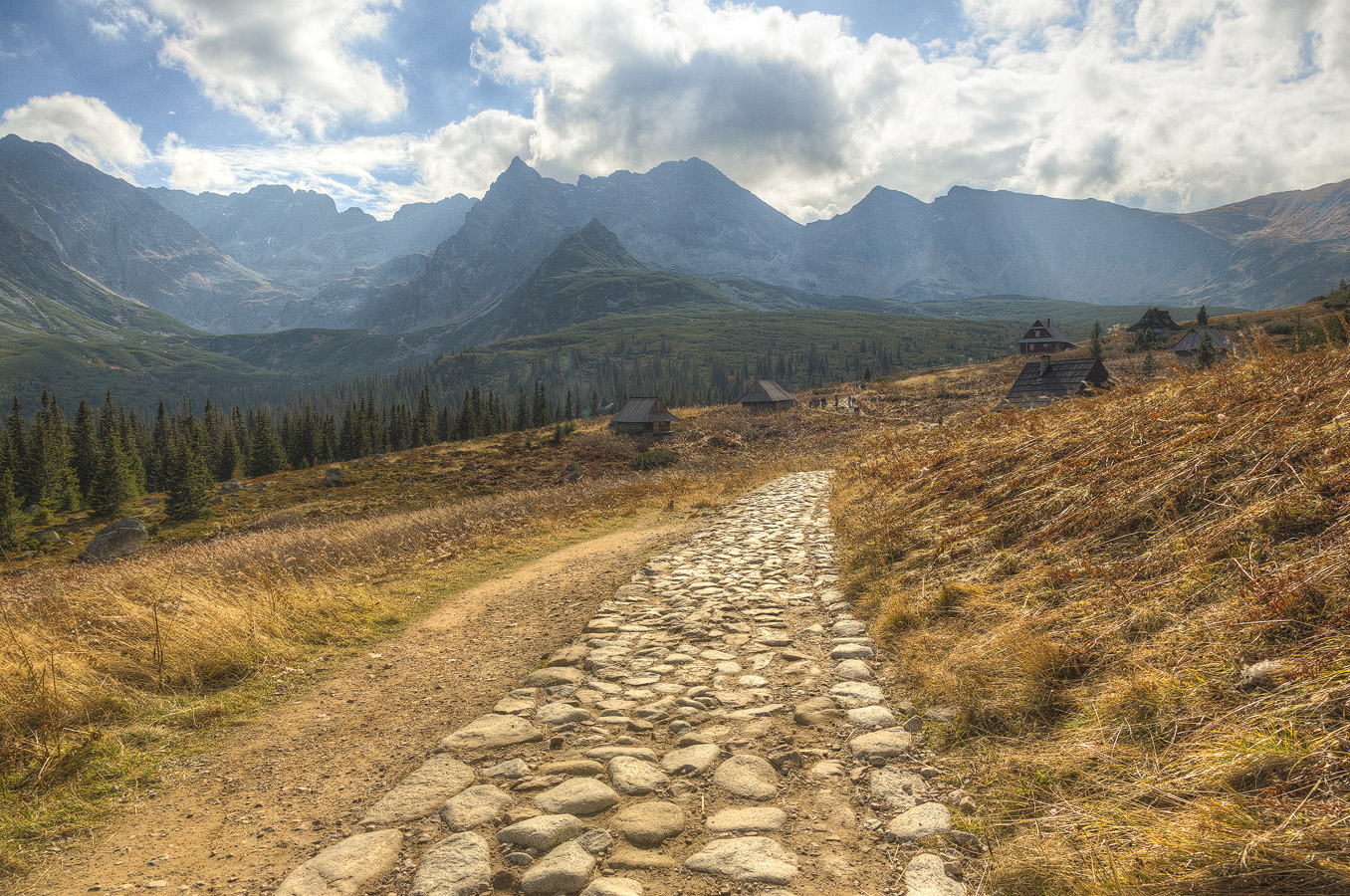
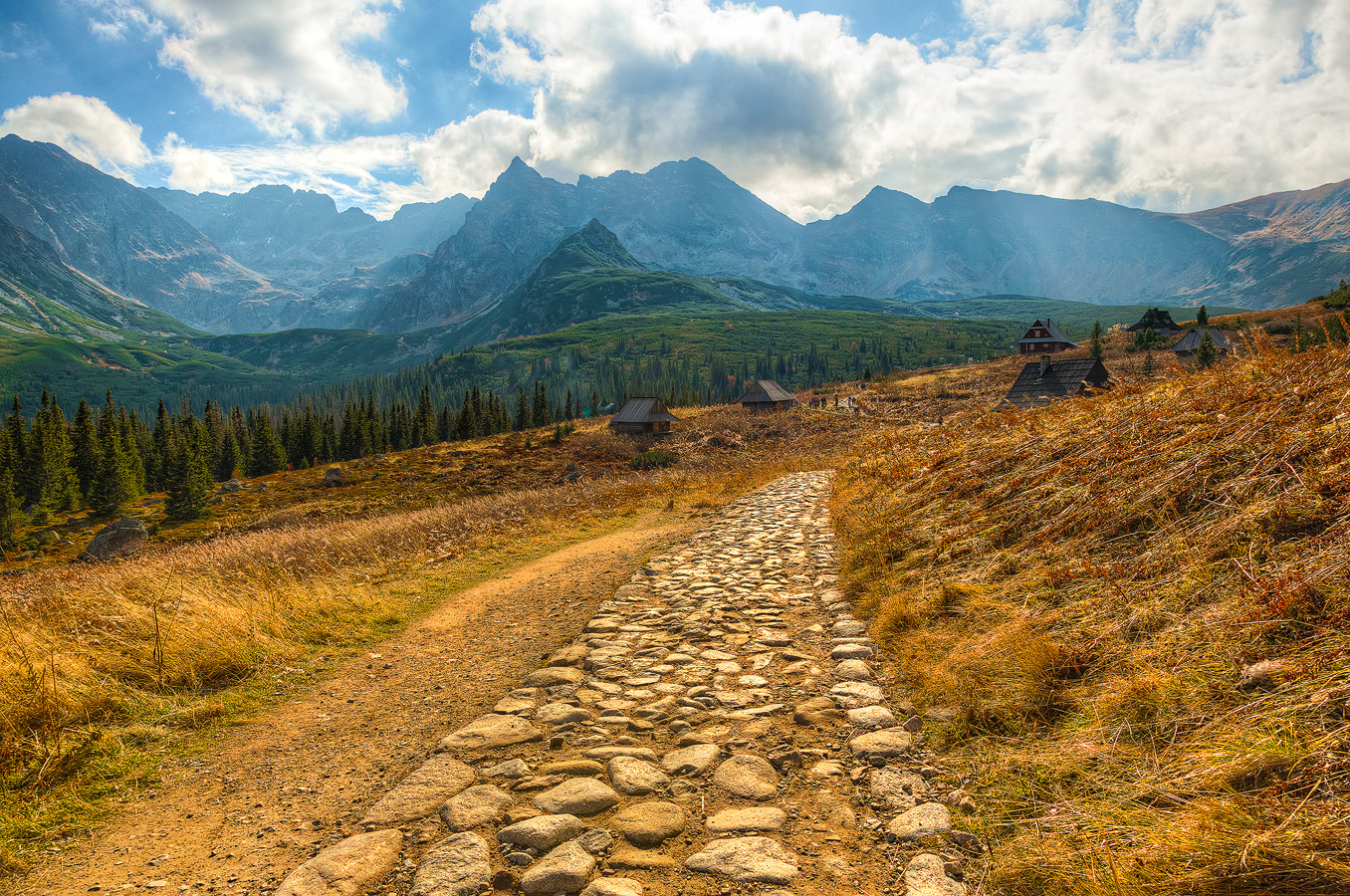
In this case Before photo is 0 EV photo without any adjustments and After image is finished image after using Photomatix Pro 5 and Photoshop CC.
Try it yourself!
Starting today I will occassionally share my source images for you to try. They aren't RAWs (just to protect my copyright a little bit) and are downscaled to 2048 x 1365 pixels but you should still be able to play with them.
Here are the images.
If you do process those images, make sure to share your results in the comments on my blog. I'd be very interested in learning how you edited them!
One tip: the images were taken hand-held, so make sure to use alignment in your HDR tool.
Here are the images.
If you do process those images, make sure to share your results in the comments on my blog. I'd be very interested in learning how you edited them!
One tip: the images were taken hand-held, so make sure to use alignment in your HDR tool.
About source images
Today photo was taken in Catedral de la Almudena in Madrid, Spain. I shot this image hand-held using very high ISO (3200) as I wanted it to be proof of concept for the post that high ISO is no longer a bad thing.You can read more about the image itself in the mentioned post.
As you can see in the Before photo above, shadow areas are almost completely black lacking any detail. Highlights look generally quite ok with the exception of the altar which is a bit overexposed. So to solve both issues I decided to capture HDR image and for that purpose I took 3 exposures at 2.0 EV spacing.
You can see all exposures below. Starting from top-left they are: middle-exposure, under-exposed photo and over-exposed photo:

Darkest exposure (-2 EV) have all lights correctly exposed and brightest one (+2 EV) exposes shadows correctly.
Editing in Lightroom
As always I started my editing in Adobe Lightroom.
As the images were taken at high ISO I expected there to be some noise, so I set Luminance Noise to 25 in the Noise Reduction panel.
I also applied lens corrections in Lens Corrections tab by checking both Enable Profile Corrections (to get rid of vignetting and distortions) and Remove Chromatic Aberration settings.
After that I exported all my source images to Photomatix Pro using Photomatix Lightroom Export Plugin.
As the images were taken at high ISO I expected there to be some noise, so I set Luminance Noise to 25 in the Noise Reduction panel.
I also applied lens corrections in Lens Corrections tab by checking both Enable Profile Corrections (to get rid of vignetting and distortions) and Remove Chromatic Aberration settings.
After that I exported all my source images to Photomatix Pro using Photomatix Lightroom Export Plugin.